Guide to Install MiniTool System Booster

Step 1. Locate the File
Press “Ctrl + J” to open Downloads instantly. Or, check your browser menu (⋮) or local Downloads folder.

Step 2. Open the Installer
Click on “sb-setup.exe” to begin.

Step 3. Follow the Setup
Click “Install” and let MiniTool System Booster optimize your system performance.
What to Optimize First?

Supercharge Your PC Performance

Declutter Your Digital Space

Eliminate Registry Issues Fast

Optimize RAM Now
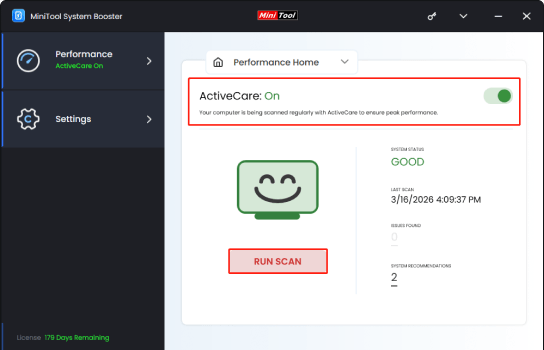
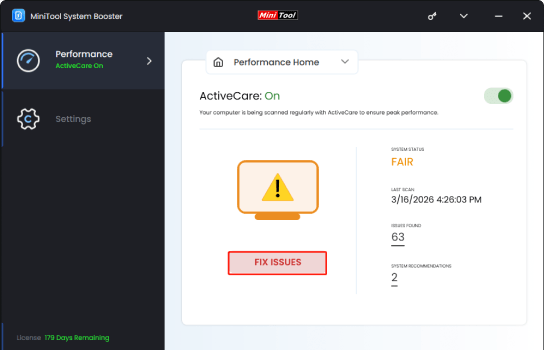
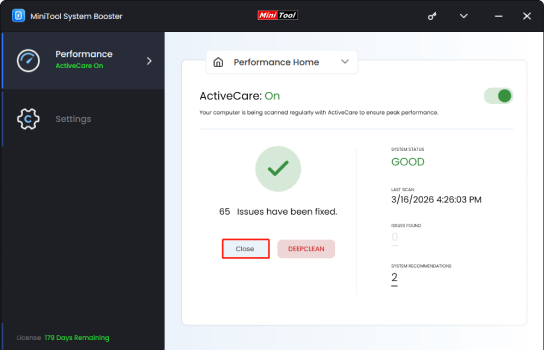
Slow or frozen apps can affect your productivity. ActiveCare automatically scans and fixes performance issues to keep your PC running smoothly. Get started with MiniTool System Booster.
Step 1.
Turn on ActiveCare and hit RUN SCAN.
Step 2.
Click the FIX ISSUES button to repair detected problems.
Step 3.
Click Close to finish the process.
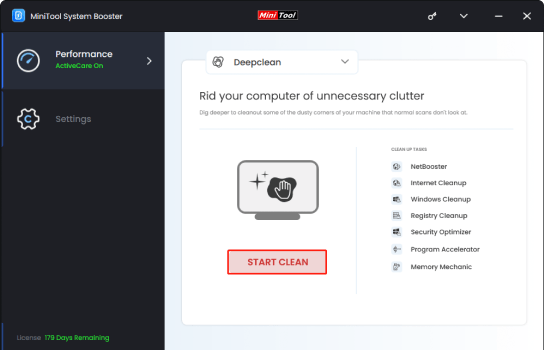
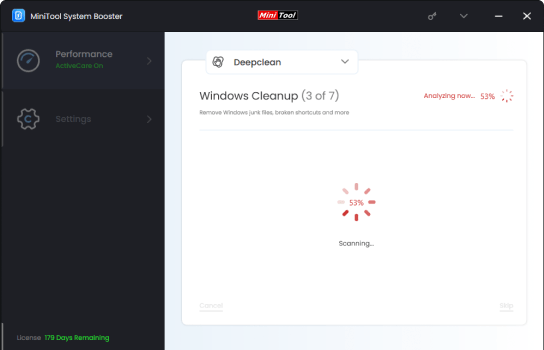
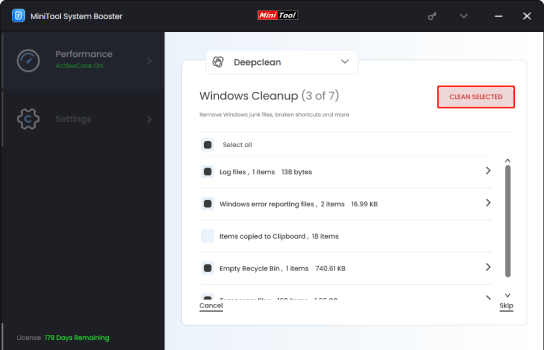
Remove unnecessary files and free up disk space with Deepclean to improve system performance. Use MiniTool System Booster to clean up your PC in a few clicks.
Step 1.
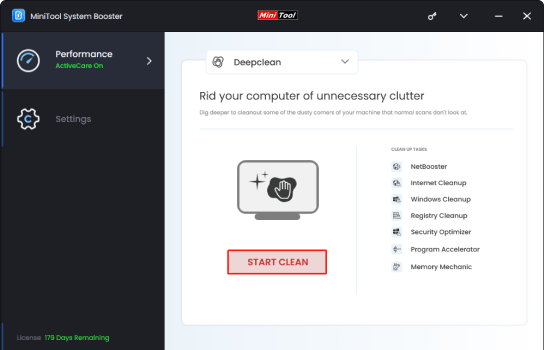
Switch to Deepclean and click START CLEAN.
Step 2.
Wait for the scan to complete.
Step 3.
Click CLEAN SELECTED to remove junk files.
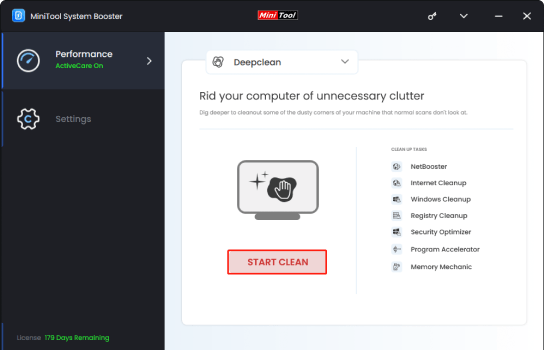
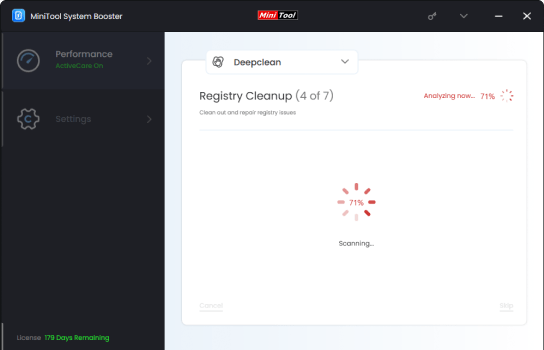
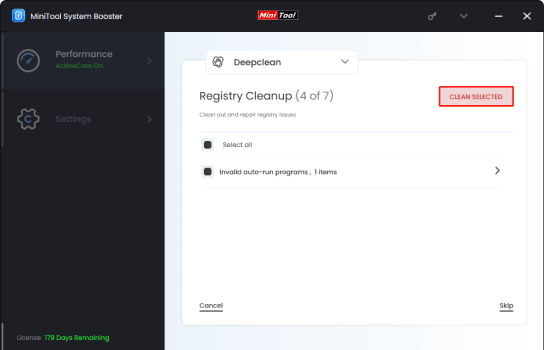
Invalid registry entries can affect system stability. Deepclean helps detect and remove them efficiently. Try MiniTool System Booster to keep your system clean and stable.
Step 1.
Click START CLEAN on the Deepclean page.
Step 2.
Proceed to the Registry Cleanup scan.
Step 3.
Review Registry Cleanup results and fix detected issues.
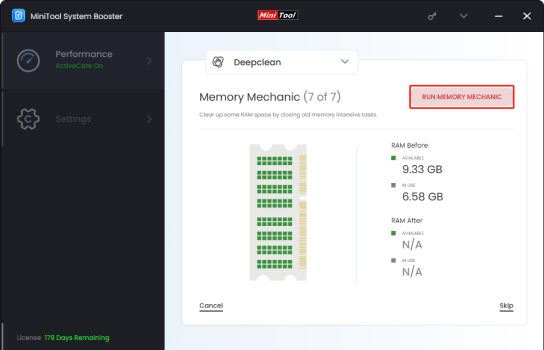
Free up memory and boost system responsiveness with Memory Mechanic in Deepclean, ensuring smoother performance for apps, games, and multitasking. Run MiniTool System Booster to optimize memory usage easily.
Step 1.
Click START CLEAN on the Deepclean page.
Step 2.
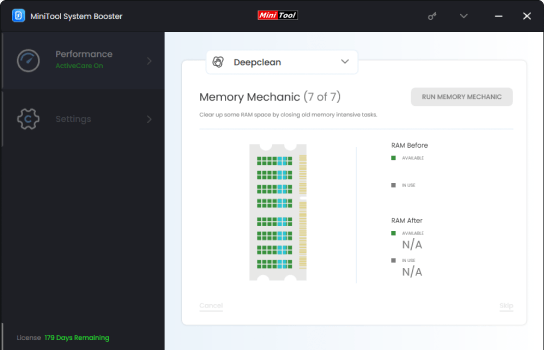
Proceed to the Memory Mechanic scan.
Step 3.
Click RUN MEMORY MECHANIC to clear up RAM space.